Tuesday, 23 December 2014

Windows 8.1: Configuring power management


How to configure Power management in windows 8.1


Right click start menu and click “Power Options”


Click
“Choose when to turn off the display”


Set Turn of display and Computer sleep time
To an appropriate value

Click “Save changes” to apply


Click
“Choose what the Power buttons do”


To change all the settings –
Click “change settings that are currently unavailable”


Change settings to a value appropriate to you


Click “Save changes” to apply


Configuration is now complete


Windows 8.1: Changing a Password


Right Click the start menu
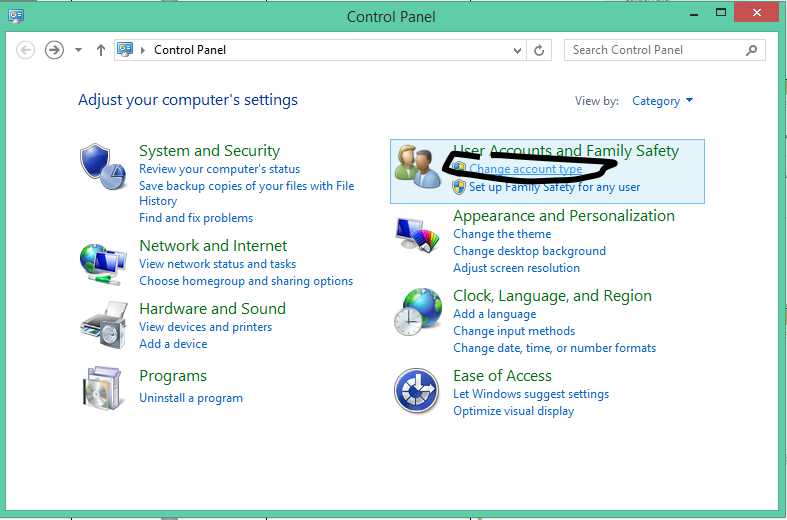
Click “Control Panel”

Click
“Change account type”

Click the account
 to change

Click
“Change the password”

Type in the new Password
Repeat it

Add A Password
hint too

Then Click
“Change password”


The password has been successfully changed


Arduino - Serial IO: Arduino works but then is not accessable in Windows

If you're writing a library that communicates to windows you might find that the Arduino becomes unavailable until you remove it and it steps up in the com port index.

Fix: You need a handshake between the Windows and the Arduino.  The windows app needs to tell the Arduino to start sending data.

Why:
What is actually happening is if you're sending a constant stream of data, windows assumes it is a mouse and changes the driver!

Windows 8.1: How to Add a Local Account


User creation - Local Accounts

Right Click the start menu
Click “Control Panel”


Click on User Accounts and Family Safety


Click on
“User Accounts”


Click Manage another account

Add a new user in PC Settings

Click Add an Account

Click sign in without Microsoft Account

Click “Local account”

Enter your login Details

Then Click “Next”

Select if you require child filters

Then Click “Finish”


You have successfully added a new local account

Windows 8.1: Updating Driver on an R9 290


Example: Installing device drivers post installation


Once you are windows right click the start menu and click device manager


Right click on devices with a “!” on top of them and click
“update device driver”


And click Browse my computer and point the driver update at the correct location


Insert you manufacturer’s disc or have the downloaded driver file available and point the driver installer at the right location.

Then click next


Click OK and the end of the process

Repeat the process on all components that do not have drivers installed